
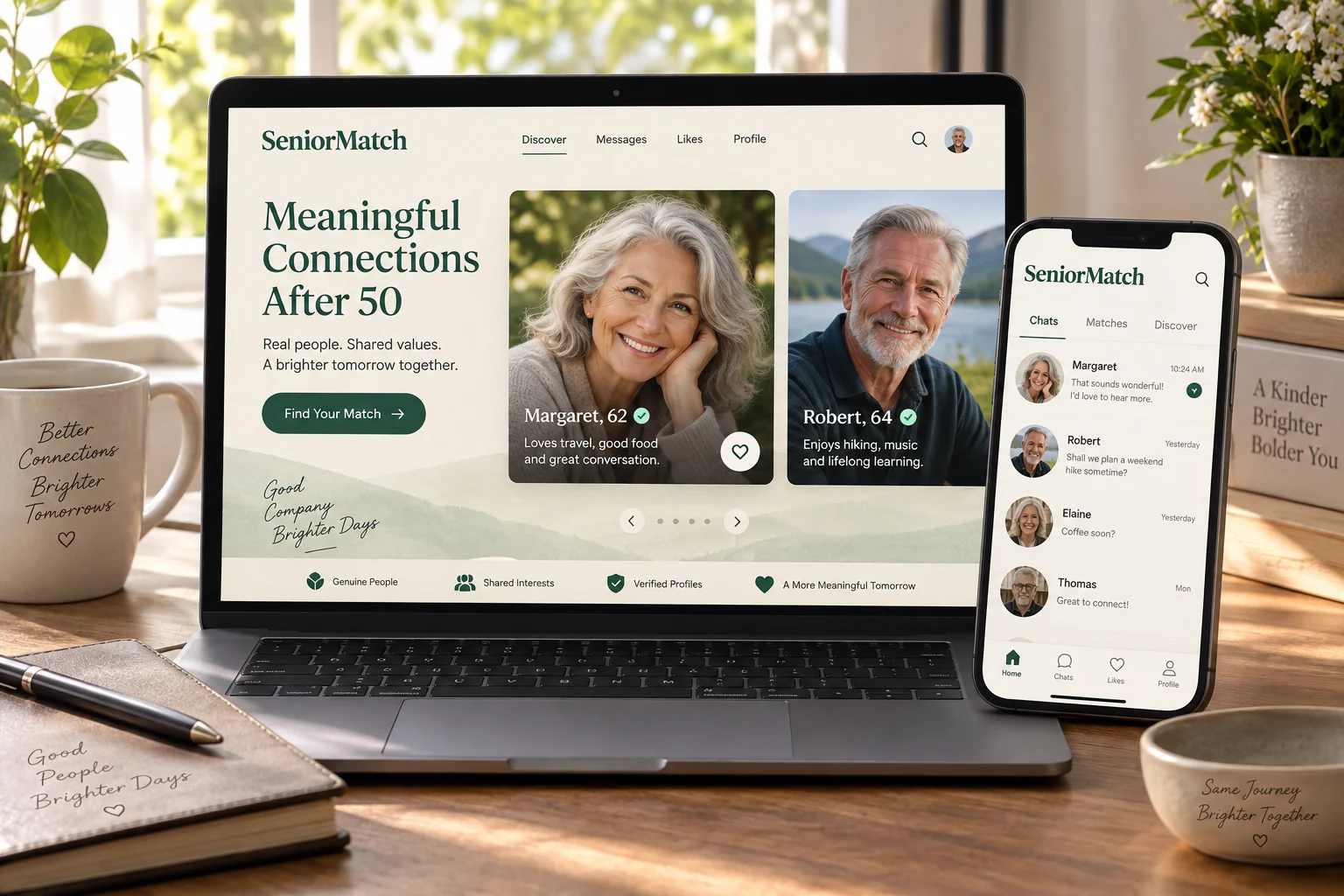
SeniorMatch on Android can help you discover mature singles and give a promising introduction the attention it deserves. The service focuses on adults over 50, including people interested in dating, companionship and shared activities. Begin with a person you would enjoy knowing, use the app to build a two-way exchange and look for a meeting that fits both lives. You do not need to make every moment on the phone a dating session.
Begin with One Person You Want to Know
An Android dating app is useful when it helps you make a personal choice, rather than simply view more pictures. Notice a profile that gives you a real reason for curiosity: an interest, a sense of humour or a relationship hope that resembles your own.
SeniorMatch's over-50 focus gives mature experience a natural place in that introduction. It still contains individuals with different plans. Someone wanting a partner for shared outings may be looking for a different relationship from someone hoping to marry, even when both enjoy the same music.
Before reacting, ask what you would like to learn from this particular person. That small question helps you distinguish attraction you want to explore from a picture you simply enjoyed seeing.
Read the Profile Before Choosing a Discovery Style
SeniorMatch describes Gallery and Flame as different discovery routes. Choose the way of paying attention that suits you; the existence of more than one route does not require constant use of all of them. A profile-led approach to senior dating can make more sense when quick reactions feel unhelpful.
A profile can suggest compatibility without proving it. Read where the person lives in broad terms, what they want to share and whether their described routine leaves room for the company you want. A travel interest, for example, may mean an annual holiday or long periods away.
Keep unanswered questions as questions. One inviting photograph and an interesting hobby do not tell you how someone treats a partner. The value of the app is the opportunity to find out through contact and experience.
Build an Exchange That Both People Add to
A good message connects a visible detail with something of your own. If a person mentions gardening, you might ask what they enjoy growing and say which part of a garden you find most relaxing. That is a more personal opening than a greeting repeated to many profiles.
Notice what happens next. Does the reply answer the question, offer detail and show curiosity about you? A warm but consistently one-sided exchange may not provide the relationship participation you want. Give your attention to someone who helps the conversation develop.
Understand access to the action you plan to use. SeniorMatch's Standard account can browse and reply to Premium members, while starting conversations requires Premium access. Comparing free senior dating options helps you distinguish an account, a reply and a new conversation.
Use Android Around the Day You Already Have
You can be genuinely interested in dating while having a full working day, volunteering commitments or regular family time. Tell a promising contact when you usually enjoy replying instead of letting a delayed message carry a meaning you did not intend.
Imagine two singles who discover that one finishes work in the early evening and the other is usually busy then. A planned conversation later, or a weekend meeting, may suit them better than trying to maintain a continuous daytime exchange. The point is finding usable time together.
Working singles over 60 can offer a reliable relationship without constant availability. Keep participation intentional: return to the conversation because you want to know the person, rather than because every alert feels like an instruction.
Resolve Android Device and Permission Questions Once
Before downloading, check the current store listing for support on your Android device. Phone makers can present permission and notification controls differently, so choose the settings available on your own phone rather than expecting another person's menus to match.
Allow access for an actual feature you want to use. You can consider a photo or camera request in relation to profile images, or location access in relation to the function being offered, without granting everything automatically. Keep sensitive message previews off a visible lock screen if that suits your household.
Control choices should support confident participation. They are not a reason to let a match take over your phone, obtain a verification code or request account credentials. If an exchange becomes unwanted, stop and use the service's contact controls.
Turn a Shared Interest into an Agreed Meeting
When conversation is reciprocal, suggest a public date related to something you actually discussed. A gardening exchange might lead to coffee near a public garden, with a short visit only if both people want it. Agree on the place and expected length before meeting.
A shared hobby should make the invitation easier without becoming a demand for equal skill or activity. Meeting through shared interests can begin with enjoying an activity and develop into interest in the person; one does not automatically establish the other.
Keep your own return plan and make the first meeting small enough for both people to choose whether they want another. The app's convenience has a purpose here: helping an interesting exchange become time together, rather than an indefinitely extended chat.
Get SeniorMatch for Android and Choose Your Next Contact
Get the SeniorMatch Android app and begin with one person whose profile gives you something real to ask. If you want the broader product choice first, the senior dating app overview explains the relationship invitation and website alternative.
Read with curiosity, contribute to a conversation and notice the response. You are looking for a person who makes continued attention feel worthwhile. Let that mutual interest guide the next message and, when you both want it, the first date.